Introduction
If you've ever missed the classic Unity desktop that Ubuntu shipped back in the 2010s, you're not alone. While Canonical moved on to GNOME, a community developer named Muqtxdir has recreated the Unity shell using modern tools: Wayfire (a Wayland compositor), GTK4-layer-shell, and Libadwaita widgets. This guide walks you through recreating that experience on your own Ubuntu system. By the end, you'll have a custom Unity-like environment that feels both nostalgic and up-to-date.

What You Need
- A working installation of Ubuntu 22.04 LTS or later (or any Debian-based distro)
- Wayfire – a lightweight Wayland compositor
- GTK4-layer-shell – allows GTK4 applications to use layer-shell protocol
- Libadwaita – GTK4 widget library used for modern GNOME apps
- Git and Meson build system
- A basic familiarity with the terminal and compiling software
- Optional: Yaru theme assets (for that Ubuntu look)
Step-by-Step Guide
Step 1: Install Wayfire and Dependencies
Open a terminal and run the following commands to install Wayfire and its required dependencies:
sudo apt update
sudo apt install wayfire wf-config wf-shell libgtk-4-dev libadwaita-1-dev meson ninja-build
Wayfire will be your new window manager. It relies on wf-config and wf-shell for configuration and basic panels. (Refer to the Tips section if you encounter dependency issues.)
Step 2: Build GTK4 Layer Shell
Clone the gtk4-layer-shell repository from GitHub, then compile and install it:
git clone https://github.com/jtheoof/gtk4-layer-shell.git
cd gtk4-layer-shell
meson setup build
ninja -C build
sudo ninja -C build install
This library allows GTK4 applications (including our Unity clone) to use Wayland's layer-shell protocol, making them behave like panels and docks.
Step 3: Get the Unity Shell Prototype
Muqtxdir's work is hosted on GitHub. Clone his repository:
git clone https://github.com/muqtxdir/unity-wayfire.git
cd unity-wayfire
Inside, you'll find configuration files, a panel written in GTK4, and scripts to launch the environment. The project is a proof-of-concept, so expect some rough edges.
Step 4: Configure Wayfire for Unity
Copy the provided Wayfire configuration to your config directory:
cp wayfire.ini ~/.config/wayfire.iniThis file sets up keybindings, animations, and window rules that mimic Unity's behavior – including the launcher on the left, global menu, and HUD-like search. You can tweak these later.
Step 5: Launch the Unity-Like Session
To start Wayfire with the Unity panel, run:
wayfire -c ~/.config/wayfire.ini &
./unity-panel
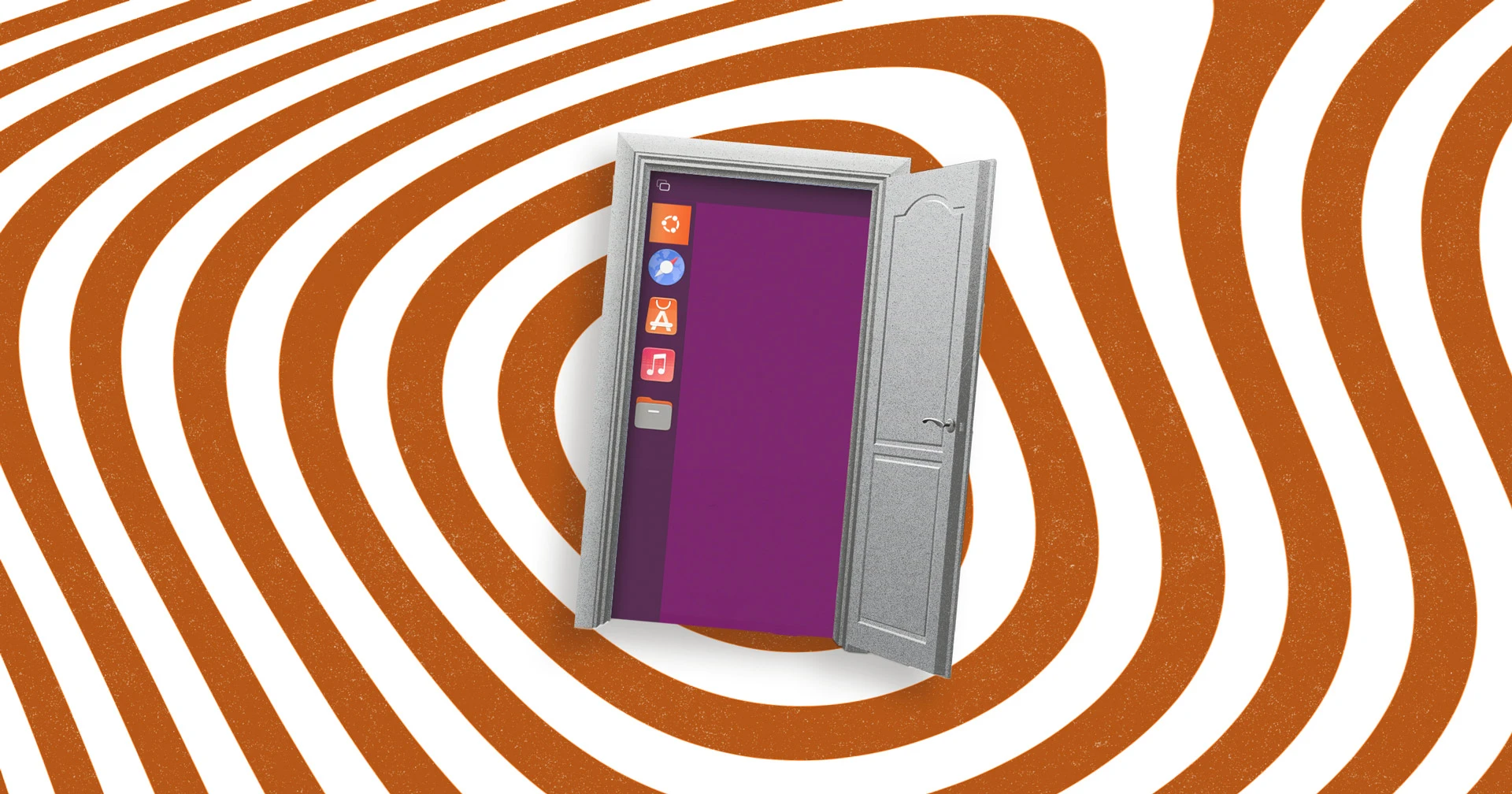
The unity-panel script is a GTK4 and Libadwaita application that draws the top bar and launcher. If everything goes well, you'll see a familiar Unity interface.
Step 6: Apply Yaru Theme (Optional)
For the complete Ubuntu look, install the Yaru theme:
sudo apt install yaru-theme-gtk yaru-theme-iconThen set it via gsettings:
gsettings set org.gnome.desktop.interface gtk-theme 'Yaru'
gsettings set org.gnome.desktop.interface icon-theme 'Yaru'
This will make the panel and windows resemble the old Ubuntu Unity aesthetic.
Step 7: Customize and Troubleshoot
Edit ~/.config/wayfire.ini to adjust launcher position, hotkeys, or app grid behavior. For example, change launcher_position = left to right if you prefer the launcher on the opposite side. Note: Some features like the HUD or global menu are still experimental. Check the project's issue tracker for known problems.
Tips and Considerations
- Backup your existing config before replacing
wayfire.ini– you can always revert. - Use a separate display manager (like GDM or SDDM) to start Wayfire automatically, or create a custom session file in
/usr/share/wayland-sessions/. - Performance may vary – this is an early prototype. Disable compositor animations in
wayfire.iniif you experience lag. - Libadwaita themes might not fully support non-GNOME desktops. Consider using a GTK4-compatible theme like Adw-gtk3.
- Join the community – Muqtxdir is active on Ubuntu forums and GitHub. Contribute bug reports or code improvements.
- If you only want the visual style without rebuilding, consider using the Yaru theme on top of GNOME or KDE – though it won't behave like Unity.
This project shows how far the Ubuntu community goes to preserve its heritage. With these steps, you can relive the Unity experience on modern Ubuntu – all powered by Wayland and Libadwaita.