Overview
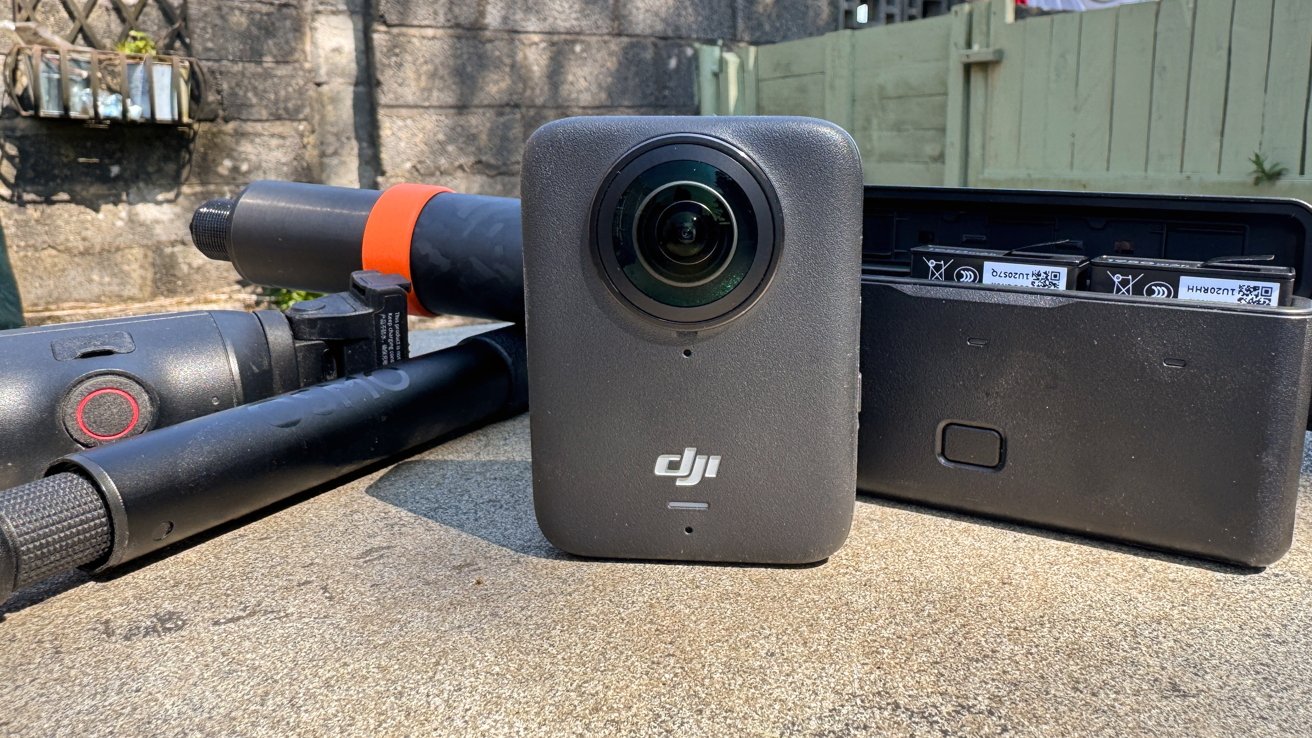
The DJI Osmo 360 represents a leap forward in action camera technology, merging the durability of traditional action cams with the creative flexibility of 360-degree capture. Unlike standard fixed-lens cameras that lock you into a single perspective, this dual-lens system records every angle simultaneously, letting you reframe shots after recording. This guide walks you through setup, shooting techniques, editing workflows, and common pitfalls—tailored for both beginners and seasoned adventurers. By the end, you’ll be able to produce dynamic footage whether you’re skiing down a mountain, cycling through a forest, or capturing immersive travel memories.
Prerequisites
Before diving in, ensure you have the following:
- Hardware: DJI Osmo 360 camera, battery, microSD card (U3/V30 or faster, at least 64GB recommended), and a compatible mount or selfie stick (the optional DJI Selfie Stick is ideal for 360 shots).
- Software: DJI Mimo app (iOS/Android) for camera control and editing; a computer with DJI Studio 360 desktop software (Windows/Mac) for advanced reframing and export.
- Accessories: Waterproof housing (if submerging), adhesive mounts, and a tripod for static scenes.
- Knowledge: Basic familiarity with action camera settings (resolution, frame rate) and a smartphone or tablet for real-time preview.
Step-by-Step Instructions
1. Unboxing and Initial Setup
Open the package and charge the camera fully using the USB-C cable and included charger. Insert a formatted microSD card and power on the device. Connect to the DJI Mimo app via Wi-Fi or Bluetooth by scanning the QR code on the screen. Update the firmware through the app to unlock the latest stabilization and 360 stitching algorithms. Calibrate the gyroscope by placing the camera on a flat surface and following the on-screen prompt.
2. Mounting and Positioning the Camera
For 360-degree capture, mounting position is crucial. Use the included adhesive mount on a helmet, handlebars, or chest strap. Ensure the camera sits in an area with a clear 360° view—avoid obstructions like backpack straps or helmet vents that may appear as stitching artifacts. For selfie-style shots, attach the optional selfie stick and extend it fully. The camera automatically detects the stick and hides it in the final 360 footage (except for the handle portion). Secure all mounts tightly to prevent vibration or slippage.
3. Shooting with 360 Mode vs Single Lens
The Osmo 360 offers two primary modes:
- 360 Mode (default): Records from both lenses, producing a spherical stitched video. Perfect for immersive scenes where you’ll choose the angle later. Set resolution to 5.7K at 30fps for highest detail, or use 4K 60fps for smoother slow motion.
- Single Lens Mode: Uses only the front lens, similar to a traditional action cam. Select this for conventional, stabilize-and-shoot footage, like a quick clip of you biking along a trail. Note: 360 video can be reframed to single-lens perspective in post, so single lens mode is rarely needed.
To switch modes, press the mode button twice or use the app. For most action sequences, stick with 360 mode—it gives you the most flexibility later.
4. Using the Optional Selfie Stick
The DJI Selfie Stick extends from 14 cm to over 1 meter. When fully extended, it creates a “third-person” effect: the camera captures you from a distance as if someone is filming you, while the stick itself is invisibly stitched out by the software. To achieve this, mount the camera at the end of the stick, extend it fully, and hold the stick horizontally or at an angle. In the Mimo app, enable “Selfie Stick Removal” in the camera settings—this ensures the bottom portion of the stick is erased. For best results, keep the stick itself out of frame by pointing the camera slightly downward. Avoid using it in tight spaces (e.g., narrow trails) as the stick may clip into the stitched seam.

5. Post-Processing in the DJI App
After shooting, transfer files via Wi-Fi or card reader to the Mimo app for quick edits, or use DJI Studio 360 on desktop for full control.
- Import footage into the app. It automatically stitches the two lens feeds into a single 360 video.
- Reframe the shot by dragging the viewport: pan, tilt, or zoom within the sphere. Use keyframes to change perspective over time—set one keyframe pointing left, then another pointing right for a dynamic sequence.
- Apply stabilization: Enable “FlowState” stabilization to smooth out camera shake—works especially well when mounted on a mountain bike or helmet.
- Trim and add music from the built-in library or your own files.
- Export as flat video in 1080p or 4K for social sharing, or keep as 360 file for interactive playback on platforms like YouTube (requires 360 upload settings).
Pro tip: For cinematic slow-motion, shoot at 4K 120fps (in 360 mode) and slow down to 25% speed in editing.
Common Mistakes and How to Avoid Them
- Poor stitching due to foreground objects too close: The camera stitches the two hemispheres together at a seam about 30 cm from the lenses. If a finger or a strap is within that zone, it may appear distorted. Keep all objects at least 40 cm away from the camera body.
- Over-relying on the selfie stick for all shots: While fun, the selfie stick effect can become gimmicky. Alternate between chest mount, helmet mount, and tripod for variety. Use the stick only when a “third-person” viewpoint enhances the story.
- Ignoring horizon lock: When reframing 360 footage, ensure the horizon stays level. Many editors have a “horizon lock” checkbox—enable it to prevent a tilted sea or skyline. If you omit this, your video may cause motion sickness.
- Shooting in very low light: The dual lenses are smaller and more light-hungry than a single action camera lens. In dim conditions, increase ISO (up to 1600) but expect grain. Better to shoot in daylight or use additional lighting.
- Forgetting to format the card before each shoot: Overwriting old files can lead to data corruption. Always format the card in the camera (not on computer) to ensure proper file structure.
Summary
The DJI Osmo 360 is a versatile tool for capturing immersive action footage, offering complete freedom in framing through 360-degree capture. By following this guide—proper setup, strategic mounting (with or without the selfie stick), and careful post-processing—you can avoid common pitfalls and create engaging, professional-looking videos. Whether you’re skiing down a mountainside or documenting a bike tour, this camera gives you the creative control that a fixed-lens action cam simply cannot match.